Screenshots
Screenshots are a great way to help translators better understand what they should translate and provide them with more context. You can add screenshots to your keys and use them in the translation process to improve translation quality.
Add Screenshots to Keys
To add screenshot to an existing key, click the Screenshots button in the key detail:
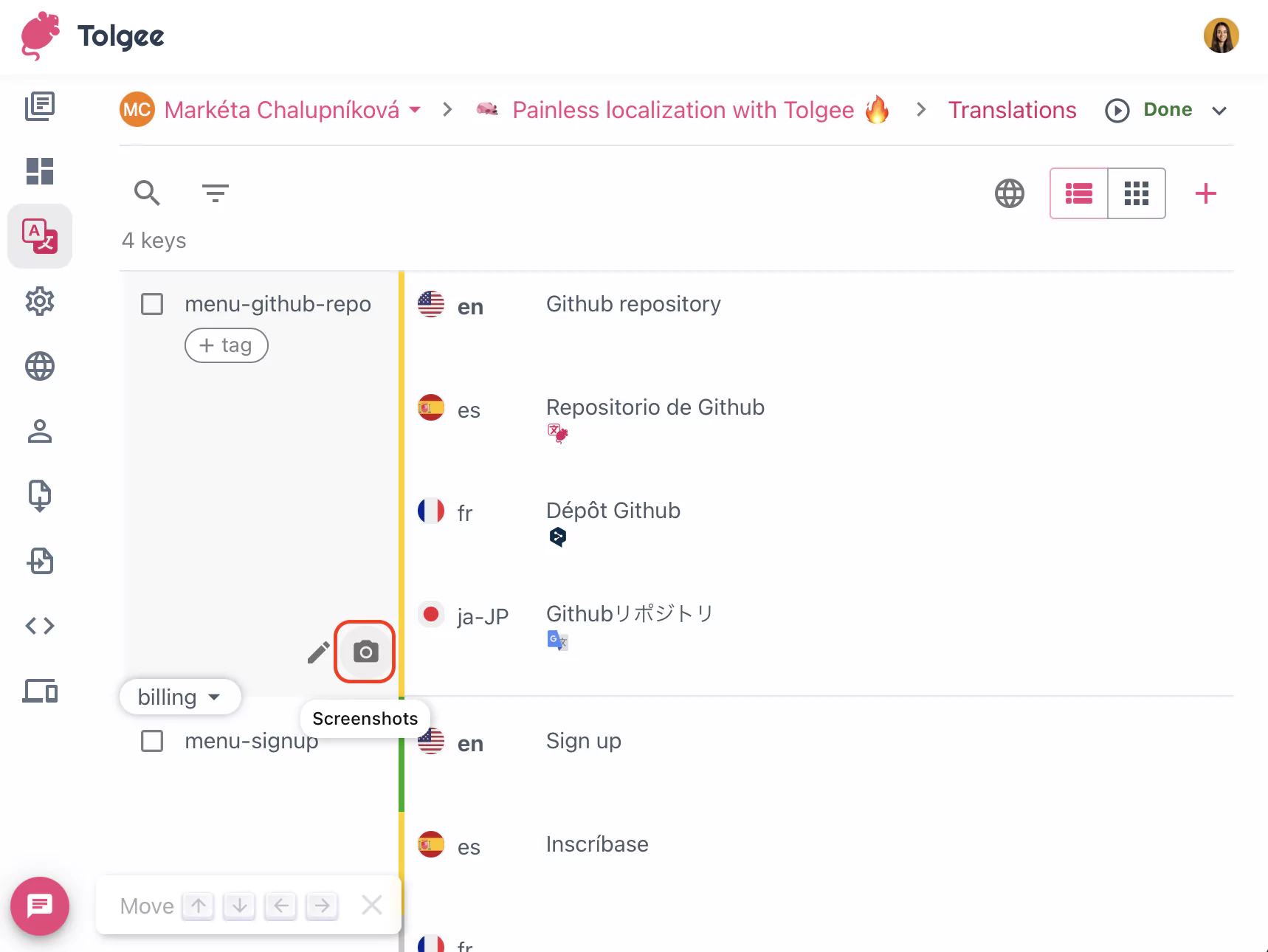
After you click on the button, you can select the screenshot you want to upload or drag and drop the screenshot to the upload form.
Using Screenshots in Translation
When you are translating your key, you can click the Screenshots button in the key detail and click on the the screenshot to see it in the modal window.
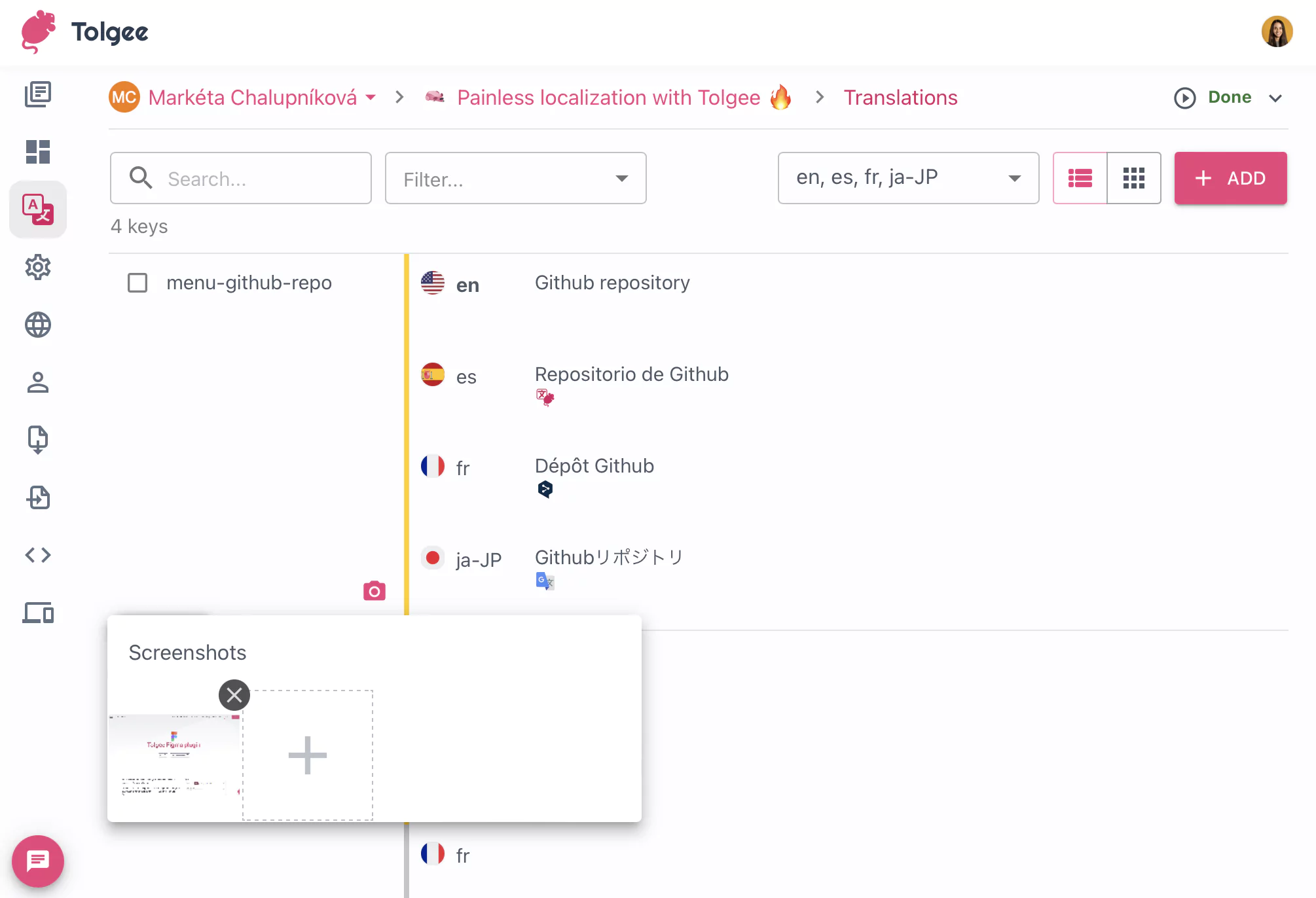
Sreenshots can also be used with AI translation as additional context for higher translation accuracy.
Deleting Screenshots
You can delete screenshot from the key detail. To do so, click on the X button in the screenshot detail.
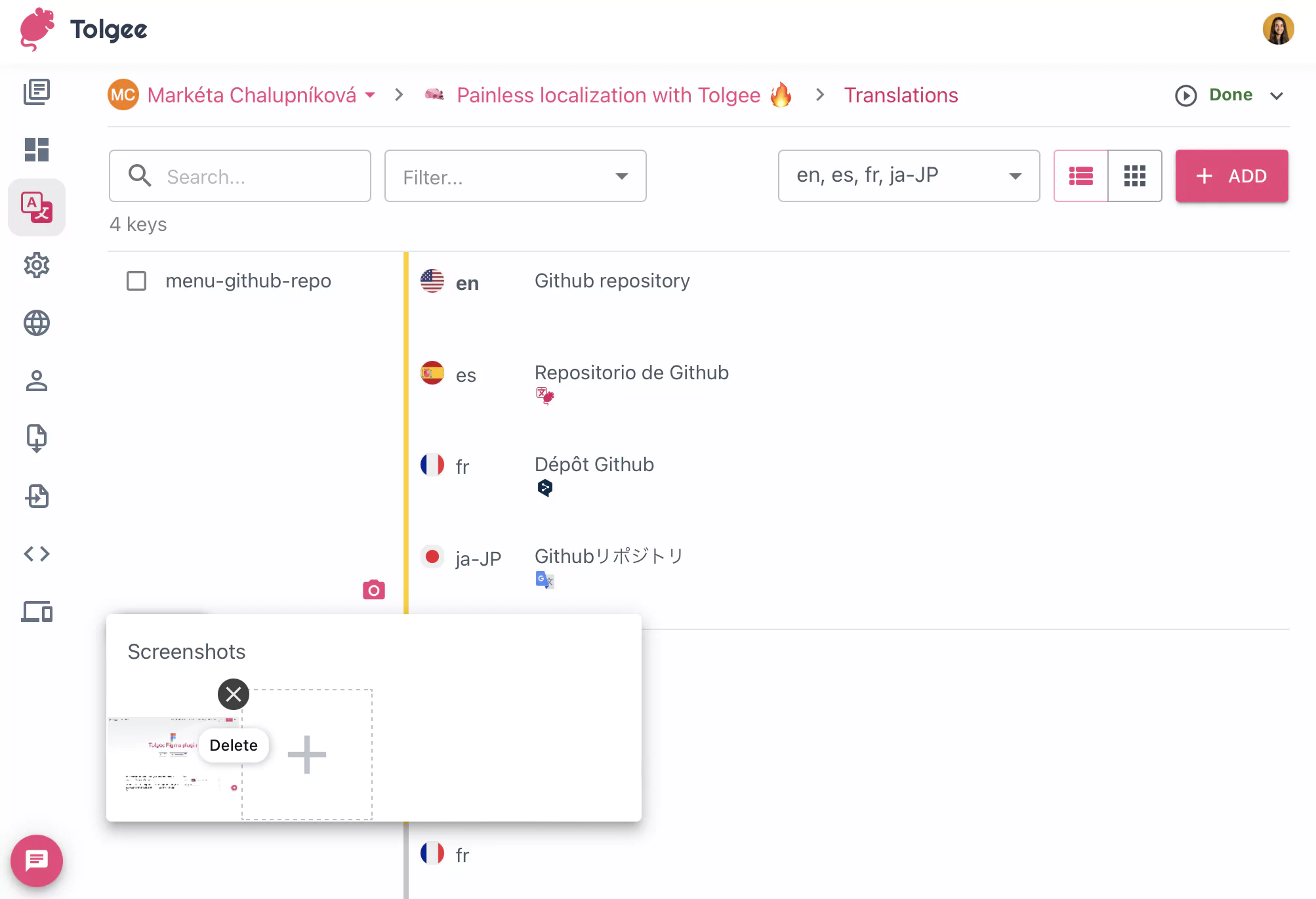
After you click on the button, a confirmation dialog will be displayed. If you want to delete the screenshot, click on the Confirm button in the dialog.