Namespaces
Storing all keys in a single localization file can be insufficient (especially when managing more extensive projects). That's where namespaces come into play. When Tolgee exports a project with namespaces, Tolgee stores the namespace data to separate files.
In the Translations view, namespaces are displayed on the top of each namespace group.
Assign a Namespace to a New Key
Namespaces help to organize translation keys by context or responsibility, such as:
- feature or module (auth, checkout, settings)
- application area (common, errors, emails)
To assign a namespace while creating a new key:
- Click
+ Addin the top right of the Translations view - Select the namespace in the
namespacedropdown- If the desired namespace doesn't exist yet, fill in the namespace name in the dialog and click the
+icon on the right to create it.
- If the desired namespace doesn't exist yet, fill in the namespace name in the dialog and click the
Filter by a Namespace
Filtering by a namespace gives you the option to see only the keys from the selected namespace. This way, you won’t confuse keys from different parts of the app.
There are two ways how to filter keys by namespaces.
Using Filter Dropdown Menu
- Click the
Filter...dropdown in the Translations view - Click
Namespaces - Select one or multiple namespaces
Using the Namespace Banner
- Click the namespace banner on top of namespace key group
- Select
Filter by namespace
Rename a Namespace
- Click the filter banner on top of namespace key group
- Select
Rename namespace - Set a new name in the dialog
- Click rename
- Confirm the operation
Delete a Namespace
Tolgee deletes namespaces automatically when there is no key assigned to them.
To delete a namespace, just delete all keys in the namespace.
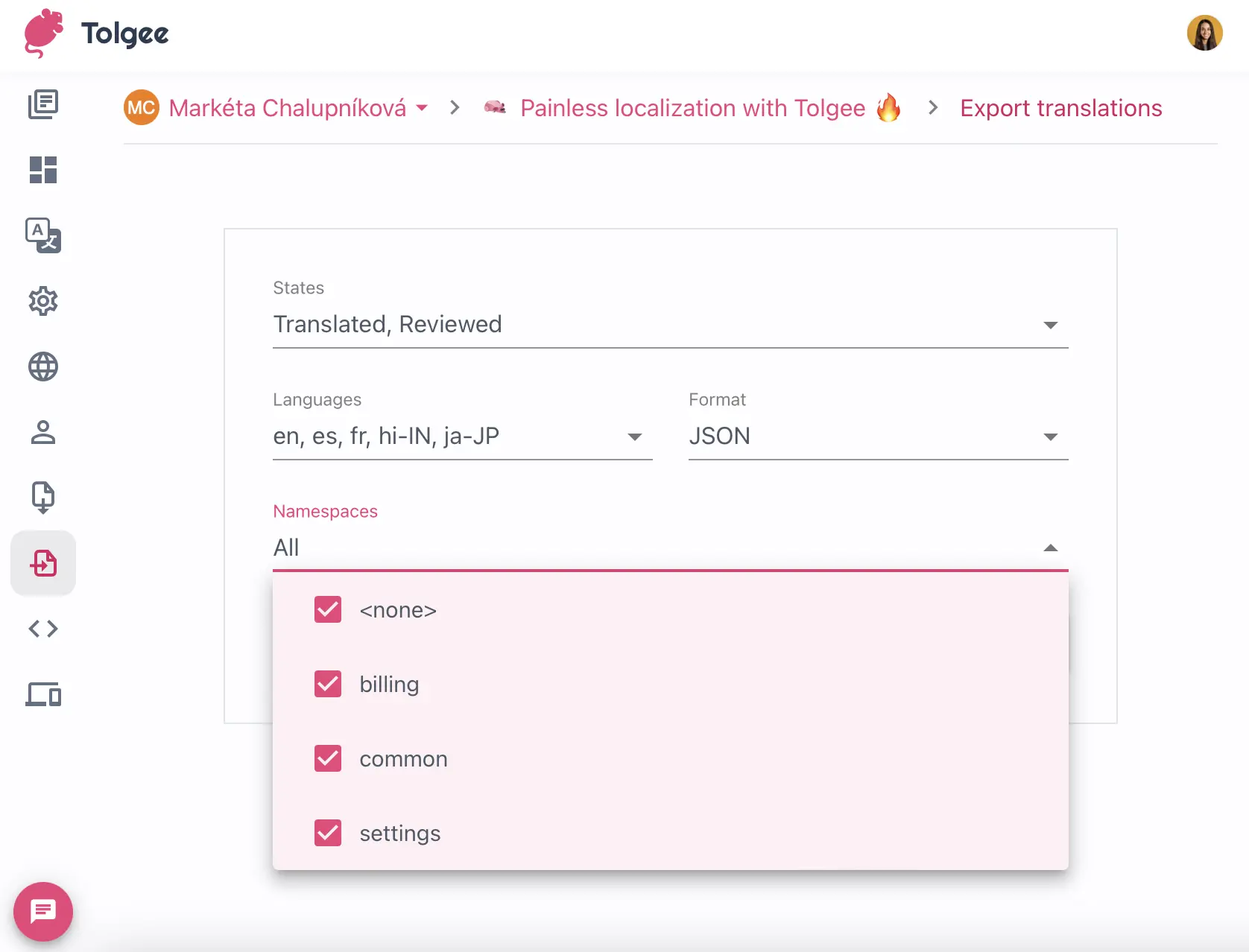
Export Keys by Namespaces
When exporting keys, you can select which namespaces should be exported. If you don't select any namespace, all keys will be exported.